Page Content
Note: These instructions are written for the Confluence 4.3.2 platform at the Penn State Wikispaces service.
Synopsis
WikiSpaces, also known as Confluence, is a valuable tool for sharing collaborative online material, and includes tools that enable users to create reasonably accessible documents.
This page contains some general guidelines for making your WikiSpaces content more accessible, with a link to more detailed information at the end.
- For long documents, use the Heading styles (Heading 1 through Heading 6) to break passages of text into multiple sections.
- Use one of the list tools to create lists, instead of inserting list items manually.
- Make sure that any hyperlink text clearly describes its target page.
- All images, except those used for purely decorative purposes, should be equipped with alt text.
- Data tables should have a header row, each cell of which should clearly describe the content in the corresponding row or column.
- If you change the text color, ensure that there is sufficient contrast between the text and the background.
- Ensure that all files attached to your WikiSpaces document are as accessible as possible.
- A table of contents can help users navigate your document quickly, in addition to providing a preview of its content, both of which enhance its general usability.
Headings
Specifying headings helps screen reader users quickly identify the sections of a page.
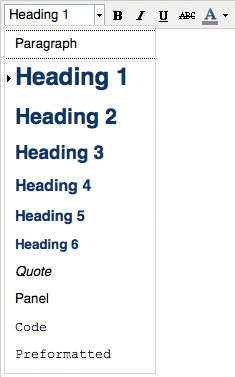
Page titles should be formatted with the Heading 1 option found in the drop-down Styles menu.
Likewise, main section headings should be formatted with the Heading 2 option, and subsection headings with Heading 3.
Lists
Use the list tool to create bulleted or numbered lists, instead of manually inserting bullets, numbers or asterisks.
As with headings, this tool enables screen readers to process list items more efficiently.
Numbered lists with multiple levels should use a different numbering scheme on each level.
For instance, if the topmost level uses "1, 2, 3," the next level should use "a, b, c."

Alternatively, you may use keystrokes to add various lists to your Wiki page.
Press all the keys simultaneously and then type your content. Hitting RETURN once will continue the formatting list to the next item. Hitting RETURN twice will stop the list formatting of the list and your content will be formatted normally once again.
Key Strokes
Bulleted List: Control, Shift, B
Numbered List: Control, shift, N
Check boxes: [ then ]
Hyperlinks
Screen reader users often scan a document for hyperlinks, so it is important to make sure your links make sense without their surrounding content.
For example, a link should say "Readings for the week of February 14"
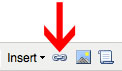
rather than "Readings for the week of February 14. Click here." Use the Insert Hyperlink tool to create a hyperlink in WikiSpaces.
Images
Images, charts and graphs must have a description so that someone unable to see them will understand their purpose and content. This is what is known as alt text. Descriptions of images should be limited to approximately 20 words or 155 characters. Charts and graphs may require longer explanations.
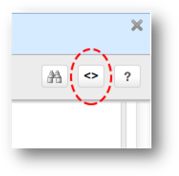
Currently in Wiki Confluence 4, Alt Text can only be added in one manner, through the open source editor.
- Select the Open Source Editor tab.
- Look through the code and determine where in the content you would like to place the picture with alt text.
Hint: use the search bar and find content prior to where you would like to place the picture.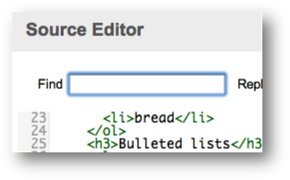
- When you find the image code, you will add the alt text information directly to the code. Note: This does not match HTML code. The jpg file will appear between
<ac:image> <ri:attachement ri:filename=”Place jpg file here“/> </ac:image>(Use code instead of image) - You will add the alt image information after
<ac:image - The alt text will be typed as
ac:alt=”ALT TEXT HERE” ac:title=” title of picture”> - And be sure to place the ALT Text before the
<ri:attachment ri:filename= “jpg file”/>. Use code instead of image.
Example of coded with Alt Text:

Note: Be sure to use Quotation marks to close off content the same way it is done in HTML. And, add the title of the picture.
Tables
It is helpful for screen reader users if tables are equipped with a header row (runs horizontally at the top of a table) and a header column (runs vertically along side the table) that describes the data in each column and allows for cross referencing data. This provision will help screen readers organize the table’s content so that it can be read in a logical order.
When inserting a table, WikiSpaces 4 automatically creates a Header Row in the top row, running horizontally to identify items in the columns. To add a table without a header row you must hold SHIFT key down while create one.
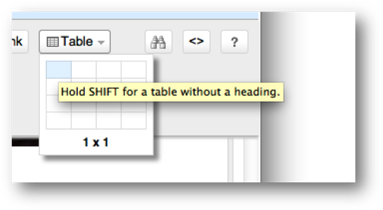
Also, the “Scope Tag” is an added feature in WikiSpaces 4. This means your table can now have an identifying header running vertically, known as the Heading Column, to cross reference complex data.
To add Headers to table:
- Place the cursor in the row or column of the table that you wish to highlight as a header.
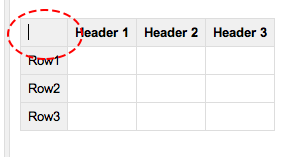
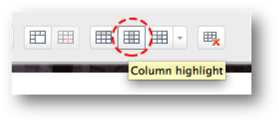
- To insert a heading row click on the tab in the table toolbar with highlight the top row.
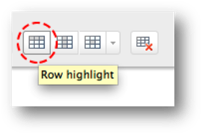
- To insert a heading column, use the tab in the table toolbar with the highlighted column.
- Done.
Note: To remove these tags, do the same steps to remove the highlighted areas.
Color Schemes
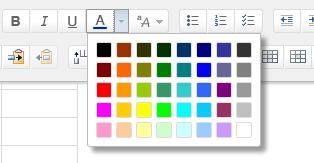
If you change text color, ensure that there IS enough contrast between the text and the background. If too little contrast is provided, colorblind or low vision users may have difficulty reading the content. Certain color combinations (often those with bright colors) can even cause headaches for some users. You can alter the color of the text in the tool bar with the More Colors button.
Attached Files
All files attached to WikiSpaces pages should be made accessible. See the Accessibility and Usability Guide’s pages on
Microsoft Word, PowerPoint, and PDFs
for more information creating accessible documents.
Creating a Table of Contents
Adding a table of contents can help screen reader users navigate your document quickly and easily,
in addition to making the page more generally usable by providing a preview of upcoming content.
You must designate headings to generate a table of contents, as these are what is used to determine the sections of the document.
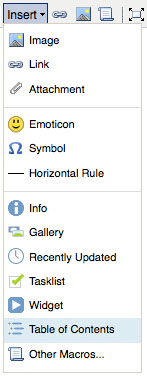
To create a Table of Contents in WikiSpaces, select Table of Contents from the drop-down Insert menu.